Recipient Tags
Tags help segment broadcasting lists and describe recipients, their interests, needs, and characteristics.
Use tags to form audiences based on common characteristics.
When Tags Are Used
- Adding a recipient
- Uploading list
- Creating a broadcast
When adding a new recipient or editing a recipient's card you can assign the necessary tags and view existing ones.
How to Add a Broadcast RecipientHow to Edit the Recipient's CardWhen uploading a list of recipients, you can create and assign common tags that describe the recipients being uploaded.
When uploading a file with a list of recipients, edna Pulse automatically adds a tag consisting of the name of the processed file, the date and time of upload in the format filename_dd-mm-yyyy_hh:mm.
When creating a new broadcast and editing a broadcast in Draft status, you can select tags based on which recipients will be included in or excluded from the broadcast.
If, when setting up a broadcast, the recipient's tags are simultaneously in the inclusion and exclusion lists, this recipient will not be added to the broadcast.
Ways to Assign Tags
- Manually
- Automatically
- Via API
You can manually assign tags to each individual recipient or list of recipients based on known information.
How to Tag the Recipientedna Pulse can automatically assign tags to recipients based on known variables such as gender and age.
Recipient VariablesYou can assign tags by calling the API api/subscribers/tags/set method.
Tag Categories
For convenience, tags are grouped into thematic categories.
For example, the tags Running, Cycling, Football, and Figure Skating can be combined into one category — Sports.
Tag categories can have subcategories. The maximum number of nesting levels is 10.
For example, the Sports category can be divided into the subcategories Individual sports and Team sports, which will include the subcategories Winter and Summer.
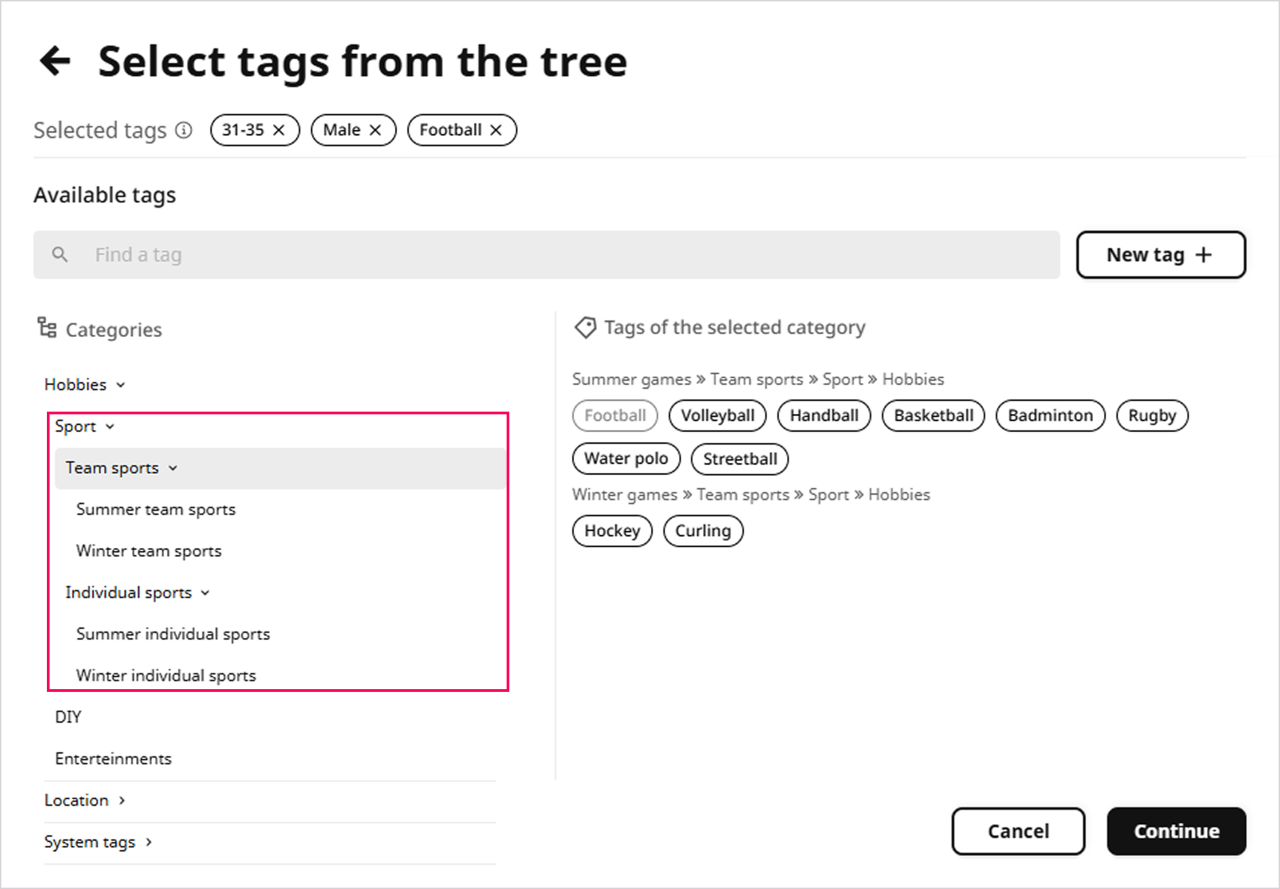
You can create tags yourself and distribute them across categories and subcategories.
To add new categories and subcategories to the tag tree, send a request to edna support.
System Tags
By default, edna Pulse offers two categories of system tags:
- Socio-demographic
- Hidden
The Socio-demographic category includes tags with two subcategories: Age and Gender. The system automatically assigns tags from these subcategories when you specify the recipient's date of birth and gender in their card.
For example, edna Pulse will automatically assign the tag >50 from the Age system subcategory if the recipient's birthday is 12.20.1970.
Socio-demographic tags will be automatically assigned to the recipient after you save the changes to their profile. To view the changes, open the recipient's profile on the User tags tab and click Tag cloud.
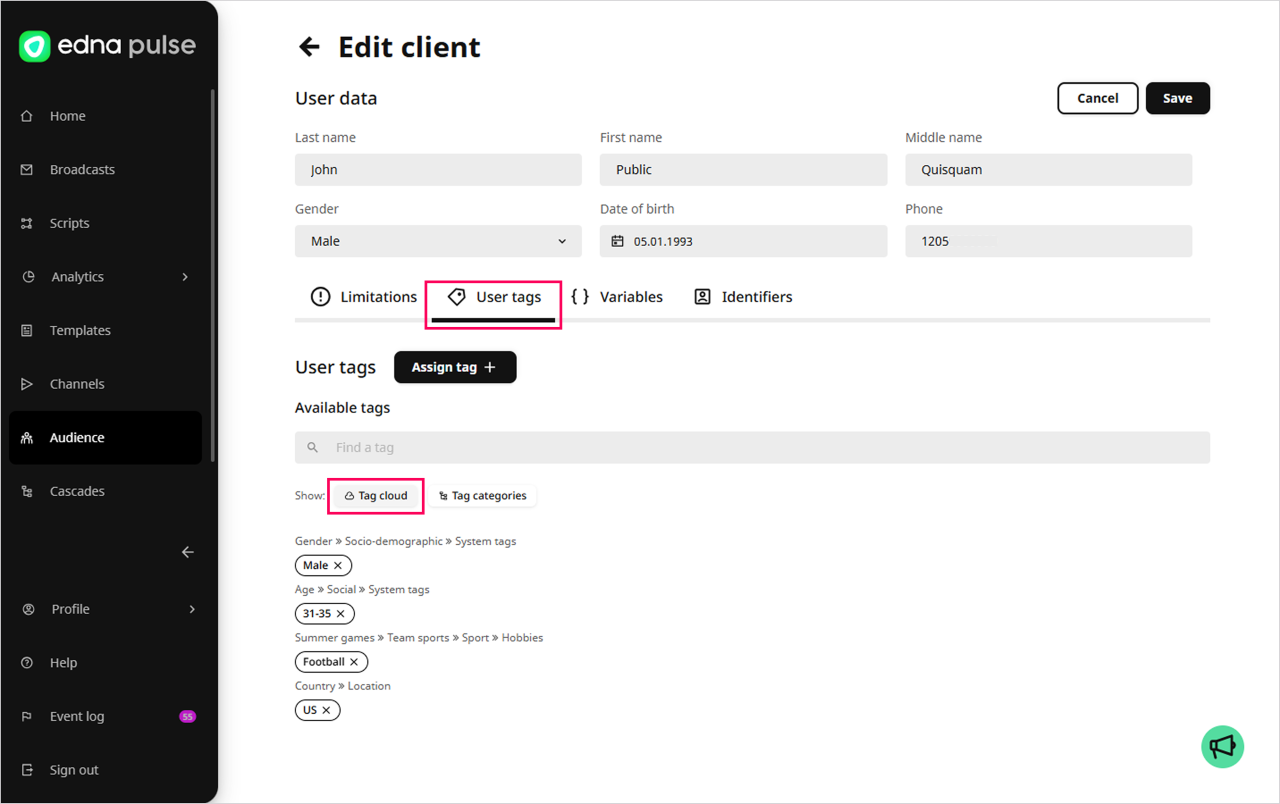
You can also assign tags from the Socio-demographic category by yourself.
The Hidden category includes tags that are used to include or exclude recipients from a broadcast:
-
All customers — this tag is assigned to the recipient by default. You can use it to send a broadcast to all recipients in your database at once.
-
Black list — the tag will be assigned to the recipient if you add them to the blacklist.
infoRecipients tagged with Black list are excluded from broadcasts sent from your edna Pulse personal account by default.
How to Edit the Recipient's CardwarningWhen sending messages via API, the Black list tag is not taken into account.
API edna Pulse: Sending Messages