Managing edna Pulse Webhooks
Make sure the URLs you use are up to date, otherwise you won't be able to retrieve the data.
How to Enable Authentication for Master Webhooks to Your Server
-
Go to the Integration → Settings → Main profile tab.
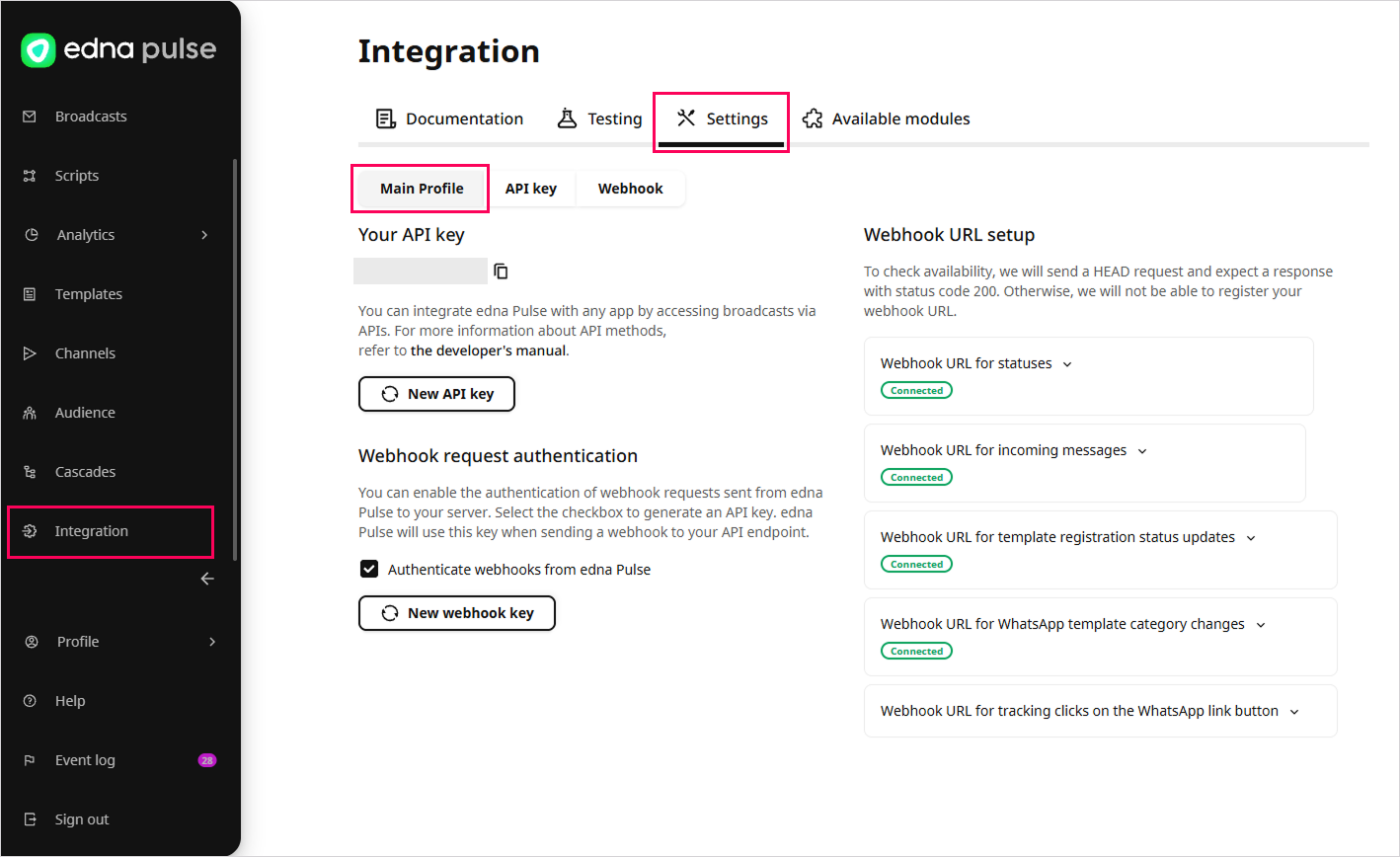
-
In the Webhook request authentication section, check the Authenticate webhooks from edna Pulse box to generate an API key.
-
Click New webhook key and copy the displayed API key.
warningFor security reasons, the API key is only displayed and available for copying once. After refreshing the page, it is masked and becomes unavailable. Make sure you save the key in a secure location or provide it to your developer.
edna Pulse will use the generated API key when sending webhooks to your URL.
How to Configure URLs for Master Webhooks
-
Go to the Integration → Settings → Main profile tab.
-
In the Webhook URL setup section, expand the setting with the appropriate event type for webhooks.
Event Types for Webhooks -
Click Add a webhook URL.
-
Enter the appropriate URL and click Add.
tipYour URL should be valid and accessible from the public internet. Use only the secure HTTPS protocol: TCP port 443 by default.
-
Wait for the specified URL to be verified.
infoTo verify availability, edna Pulse will send a test
HEADrequest and expects to receive a response with a200status code. If no such response is received, edna Pulse will retry up to three times: after 4, 128, and 2048 seconds.If a
200response is not received after all attempts, the specified URL will not be added. Try adding a different URL.
After adding a valid URL, the webhook changes to the status
Event Types for Webhooks
Webhook URL for statuses WhatsApp Viber
Retrieving the delivery status of sent messages.
Webhook about Changing Message StatusWebhook URL for incoming messages WhatsApp Viber
Receiving incoming messages from customers.
Webhook about Receiving Incoming MessagesWebhook URL for template registration status updates WhatsApp Viber
Receiving updates on template statuses.
Webhook about Changing Template StatusWebhook URL for WhatsApp template category changes WhatsApp
Receiving information about updates to the WhatsApp template category from Meta.
Webhook about Changing WhatsApp Template CategoryWebhook URL for tracking clicks on the WhatsApp link button WhatsApp
Retrieving information about recipients' clicks on links in WhatsApp messages.
Webhook about Clicking on WhatsApp Link ButtonsHow to Add an Additional Webhook
-
Go to the Integration → Settings → Webhook tab.
-
Click Add Webhook.
-
Enter an internal name for the webhook, which will be displayed in the general list.
-
Enter the URL of your server where webhooks containing event information will be sent.
tipYour URL should be valid and accessible from the public internet. Use only the secure HTTPS protocol: TCP port 443 by default.
-
(Optional) Enter an additional URL for your server.
-
(Optional) Toggle the edna Pulse request authentication switch to generate an API key that edna Pulse will use when sending webhooks to your URL.
-
The Senders dropdown list displays the internal names of connected channels with the status
Correct: select one or more channels whose events will trigger the sending of webhooks. edna Pulse Channels -
Select one or more types of webhooks that will be sent to the specified URL:
- for statuses;
- for incoming messages;
- for updates to template registration statuses;
- for changes to the WhatsApp template category;
- for the recipient clicking a link button in WhatsApp.
-
Click Save.
-
If you enabled the edna Pulse request authentication toggle in step 6, copy the displayed API key.
warningFor security reasons, the API key is only displayed and available for copying once. After refreshing the page, it is masked and becomes unavailable. Make sure you save the key in a secure location or provide it to your developer.
-
Wait for the specified URL to be verified.
infoTo verify availability, edna Pulse will send a test
HEADrequest and expects to receive a response with a200status code. If no such response is received, edna Pulse will retry up to three times: after 4, 128, and 2048 seconds.If a
200response is not received after all attempts, the specified URL will not be added. Try adding a different URL.